

Your day, your timetable
Komapi
コマピ
Plan Your Day Like a Timetable
Make every switch more fun with a school-style bell. Put homework, games, hobbies, and breaks together in one timetable.
 Available now
Use cases
Made for days like these
Give an open day a little shape
On a day with no fixed plans, laying out what you want to do alongside time to rest makes the day easier to picture.
Know what comes next when you get home
Study, hobbies, chores—arrange what you want to do in an order that feels right for the time you have.
Move comfortably between focus and breaks
Choose work and break times, then use start and end notifications as gentle cues to switch.
Add a gentle rhythm to days off
During a long break or an unscheduled day, follow a timetable that works for you without packing in too much.
Features
Shape your day in a way that feels easy
Make a timetable that's yours
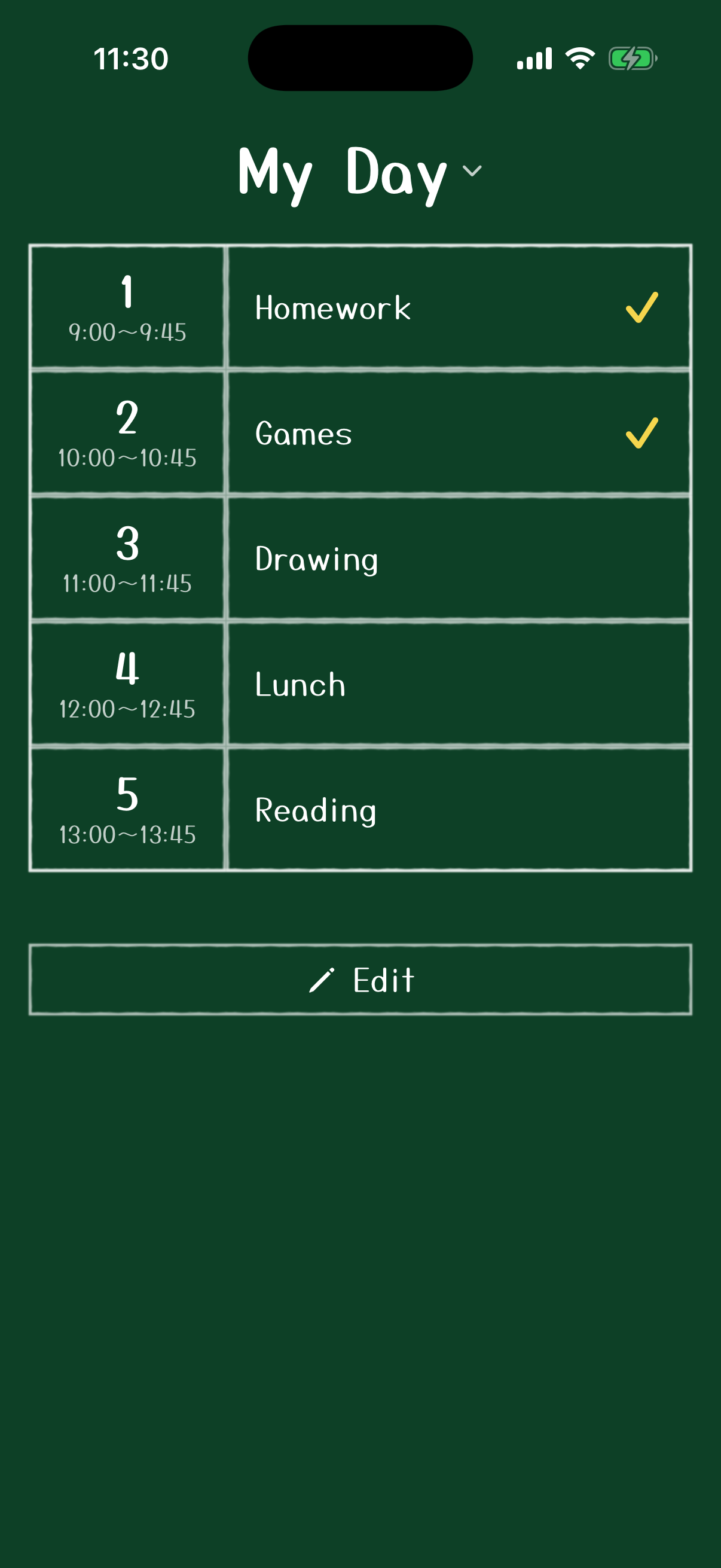
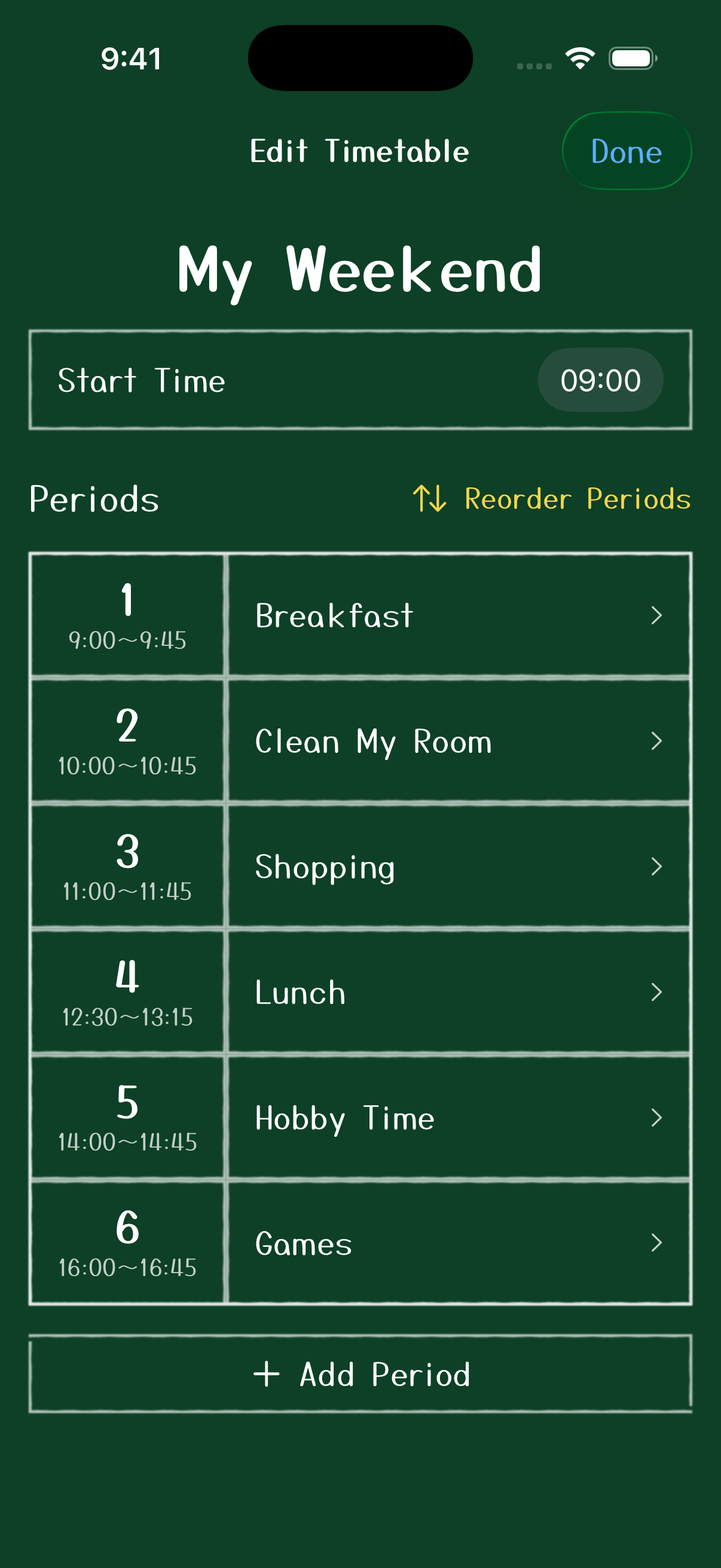
Set activities and times to match your pace. Add, remove, or reorder periods, and adjust both work and break times.
Switch between timetables
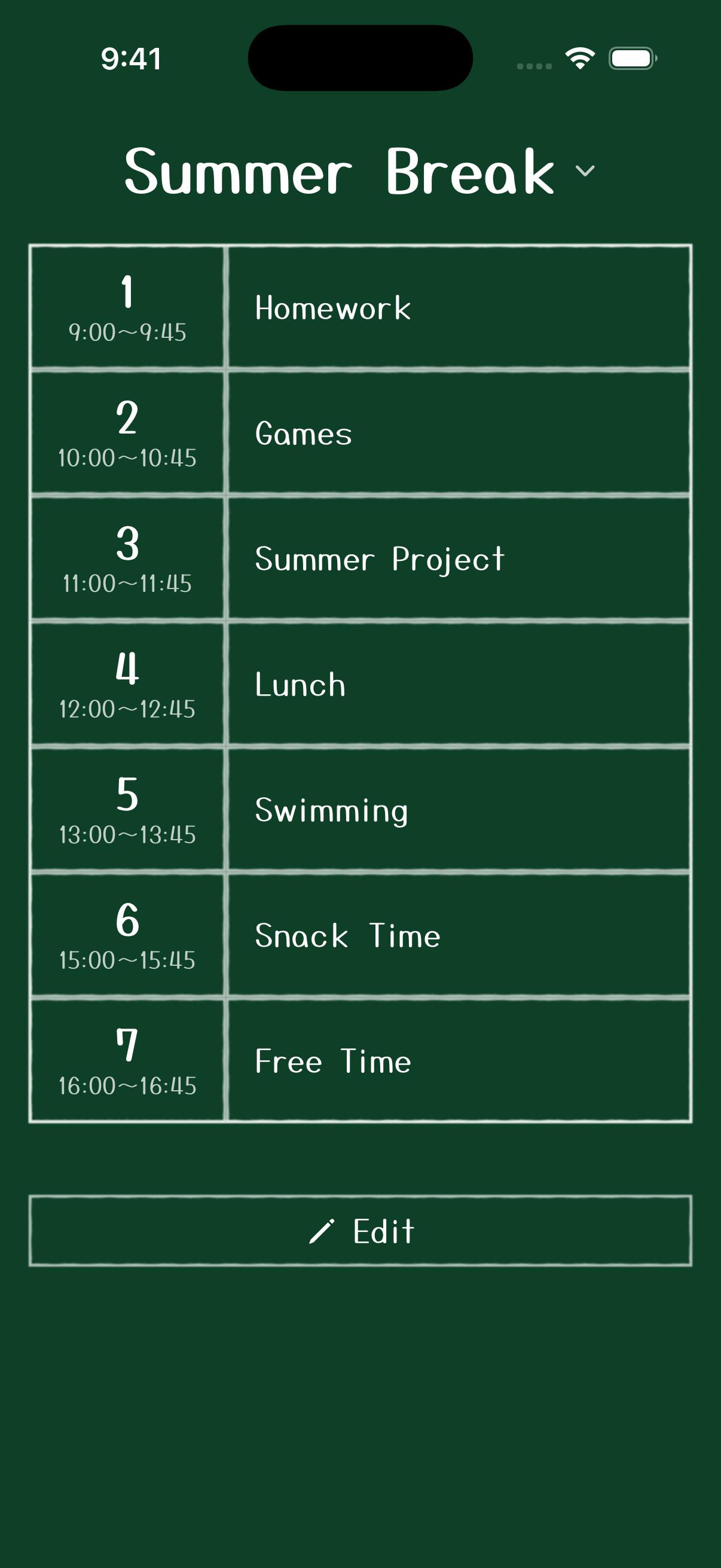
Make separate timetables for days off, after you get home, or study time, then switch between them as needed. You can create up to three timetables with up to 12 periods in each one.
Get a cue when each period starts and ends
Set the timetable you are using as “Today's Notifications” to receive an alert at the start and end of every period. Choose Chime, Electronic Tone, Bell, or no sound. Notifications do not repeat automatically every week.
See what's finished at a glance
When “Today's Notifications” is set, a completion mark appears automatically after a period's end time passes, so you can follow your progress on the timetable. Blackboard and whiteboard use a check mark, while Cat Mode uses a paw print.
Three themes to suit your mood
Blackboard and whiteboard are free to use. Cat Mode adds cat watermark decorations and paw-print completion marks, and is available for 24 hours after you watch a rewarded ad to the end.
Portrait and landscape support
Use portrait orientation while holding your phone, or landscape when you want more horizontal space. Choose the orientation that suits the situation.
Komapi is free to use. Ads may appear on some screens, such as Settings. Cat Mode is available for 24 hours after you watch a rewarded ad to the end.
Screenshots
A closer look at Komapi
How to use
Get started in three steps
- 1
Make a timetable for the moment
Create one for a day off, after you get home, or a study session.
- 2
Add what to do and when
Line up activities and breaks in a way that suits your pace.
- 3
Set “Today's Notifications” when needed
Choose that day's timetable and set start and end notifications.
FAQ
Frequently asked questions
Here are answers to common questions about your data and notifications in Komapi.
Where is the data I create stored?
The timetables and settings you create in Komapi are stored locally on your device. Komapi does not send or store this data on NekotApp's servers. For more information about how data is handled, please see our Privacy Policy.
Will my app data carry over when I switch to a new device?
Komapi does not offer data transfer through an account or cloud sync. You will need to create your timetables again on your new device.
If you restore your new iPhone from a backup, iOS may also restore the app data, but Komapi cannot guarantee that it will carry over. We recommend taking screenshots of any timetables you want to keep before switching devices.
I receive notifications, but no sound plays
First, check whether Silent mode is turned on. Also check your notification volume and Focus settings.
On iPhone, open Settings → Notifications → Komapi and make sure Sounds is turned on. The names and locations of these options may vary depending on your iOS version.
Notifications do not appear
Open Settings → Notifications → Komapi and make sure Allow Notifications is turned on. Also check that you have set the timetable you are using that day as “Today's Notifications” in Komapi.
Are notifications set automatically every day?
Notifications are scheduled when you choose the timetable you are using that day and set “Today's Notifications.” They do not repeat automatically every week.
Can I use Cat Mode for free?
Cat Mode is available for 24 hours after you watch a rewarded ad to the end. Blackboard and whiteboard remain free to use as usual.
What happens to my data if I delete the app?
Because the data is stored locally on your device, deleting the app also deletes your timetables and settings. Komapi cannot restore deleted data if you reinstall the app.
How many timetables can I create?
You can currently create up to three timetables, with up to 12 periods in each one. For example, you can make separate timetables for days off, after-school time, and study sessions, then switch to the one you need that day.
What should I do if the app is not working properly?
Close and reopen the app, then check that Komapi is up to date in the App Store and that your iPhone is running the latest version of iOS. If the issue continues, restart your device and try again.
If that does not resolve the problem, please use our contact page and include your device model, iOS version, and the steps that led to the issue.
Download
Make a timetable that's yours.
Things you want to do and time to rest—use Komapi to shape a day that feels right for you.
Available now